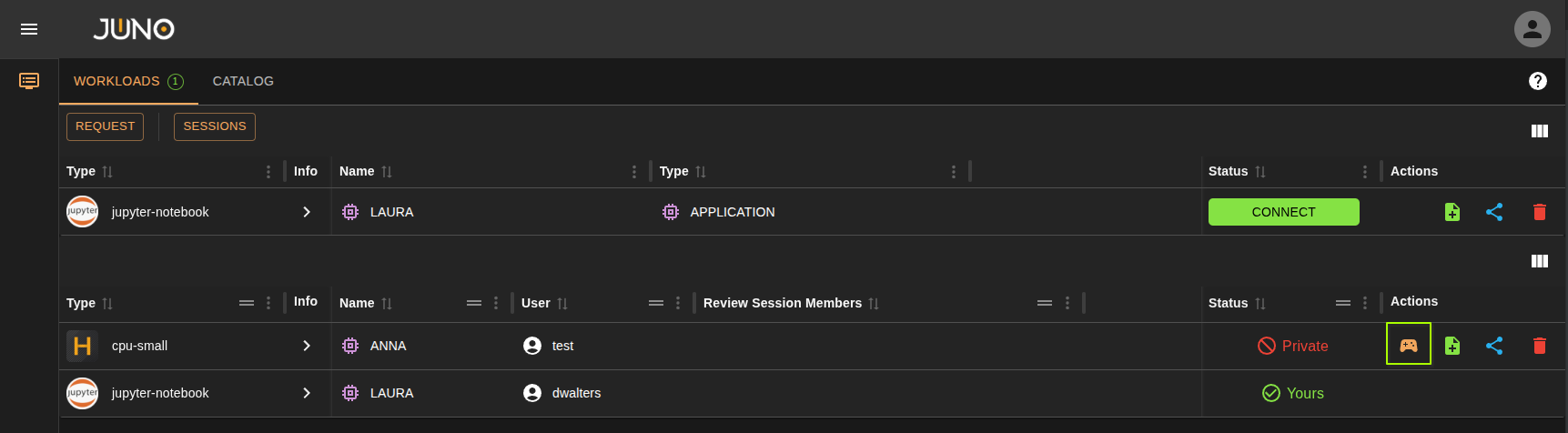
Workloads
One of the core Juno products is our Kuiper workloads. This is where users can launch workloads and connect, manage, and share them.
Workload Management
Request
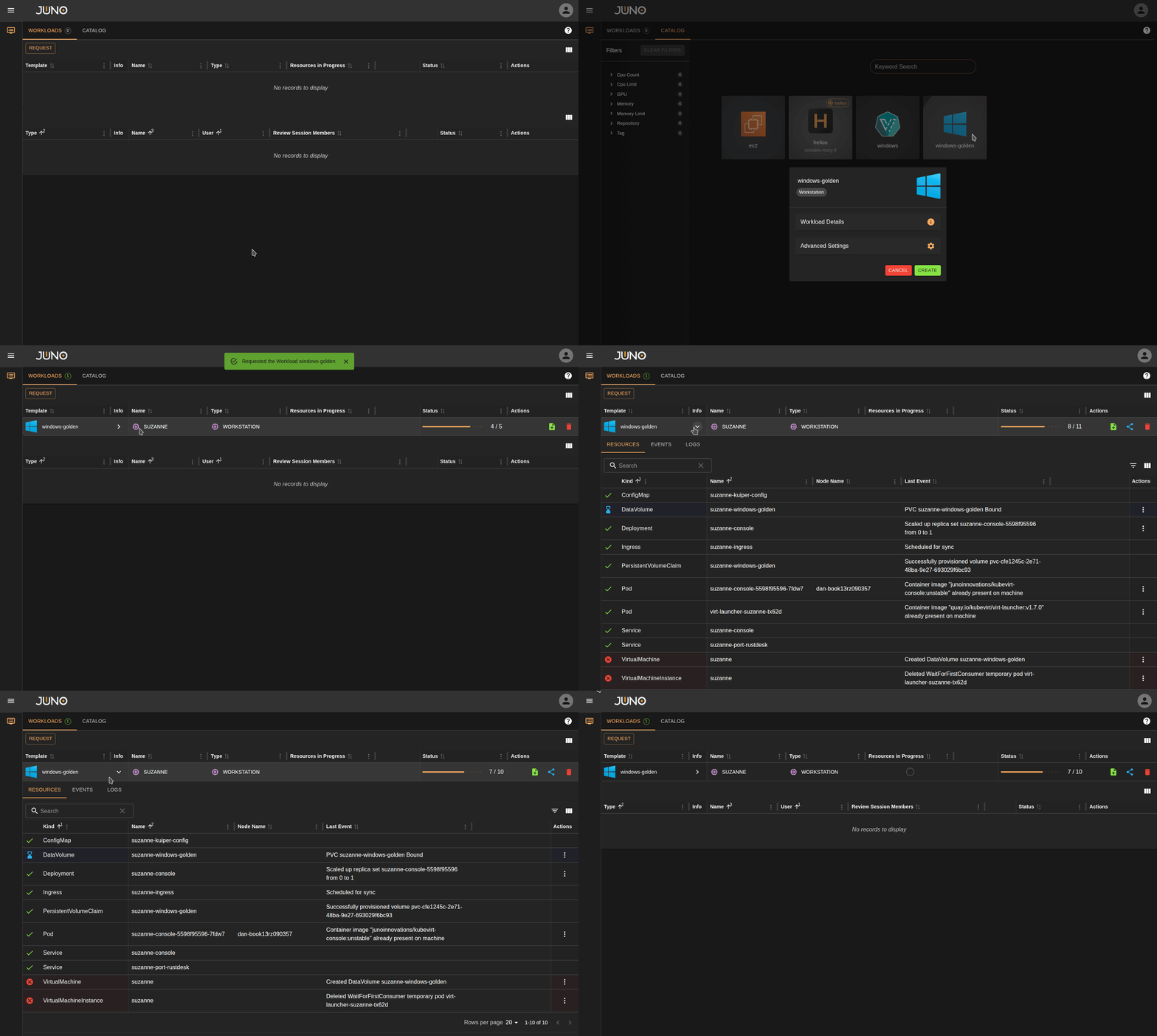
Users can quickly request a workload by clicking the "Request" button in the top-left corner or by opening the Catalog tab. The catalog lets you filter available templates and request a workload. You can also add new workload templates from within Genesis. Read more about workload template creation here
Workload Status:
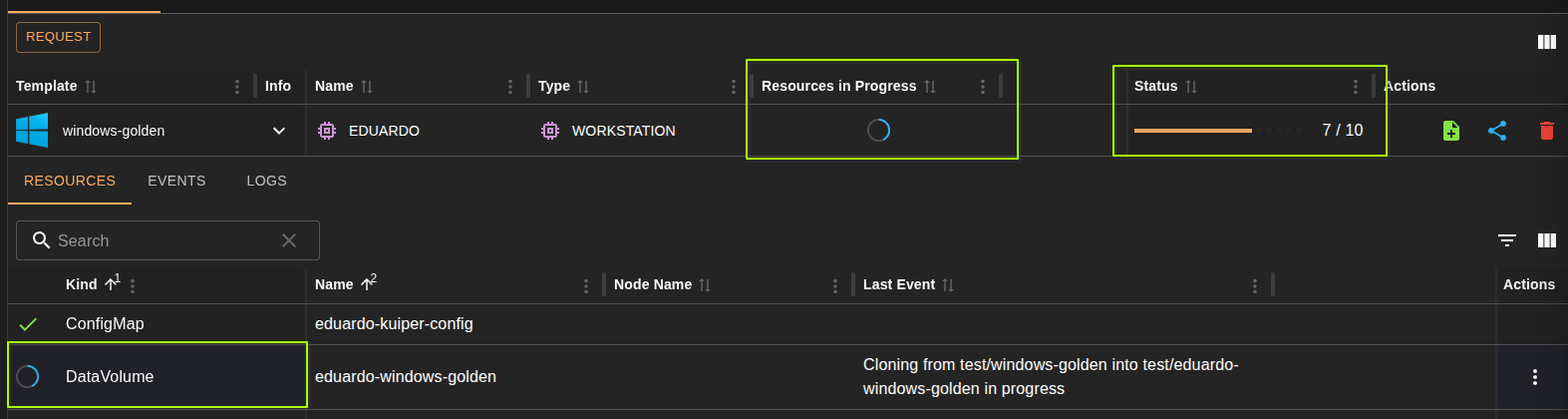
Once requested you will see a status bar showing the number of resources that are ready, out of how many are left. You can also expand the workloads details panel, to see the resources table. Here you will be able to see each resource and their current state. Once all resources are ready, a connect button will appear. Some resource actions will also provide a progress wheel showing the progress percentage for that resources current action. If you hover over this progress wheel you will see the current percentage and the resource name.
Advanced Settings
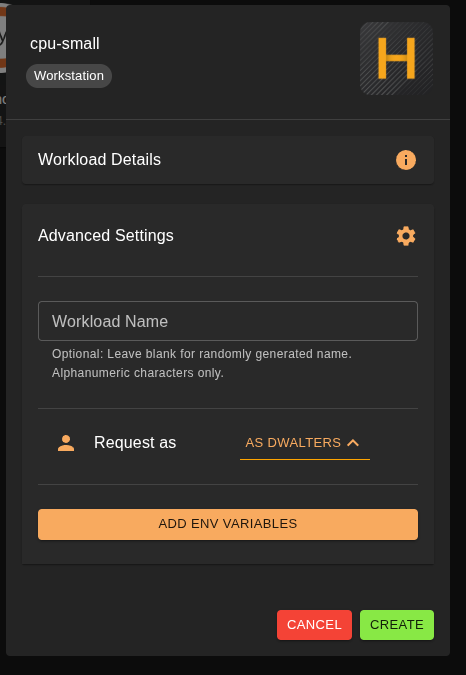
When requesting a workload, users can configure advanced settings such as a custom workload name, requesting the workload on behalf of another user, and custom environment variables.
Note
Requesting a workload on behalf of another user is restricted to admins. Adding custom environment variables prior to launch is restricted to members of the 'admin' and 'kuiper' user groups. Read more about user management here
Environment Variable Hints (env_hints)
If the workload's Terra plugin defines an env_hints entry in its metadata.yaml, the advanced settings panel will display a list of that plugin's commonly used environment variables. Click a variable from the list to add it before launching the workload, rather than typing it in manually.
Resources, Events, and Logs
You can expand the workload row details panel to view the resources, events and logs of the running workload. Any resource that has available actions, will have these listed on the right in the "Actions" column. Simply click the 3 dots to show the resources available actions. To learn more about some of the available resource actions. See our resource actions documentation
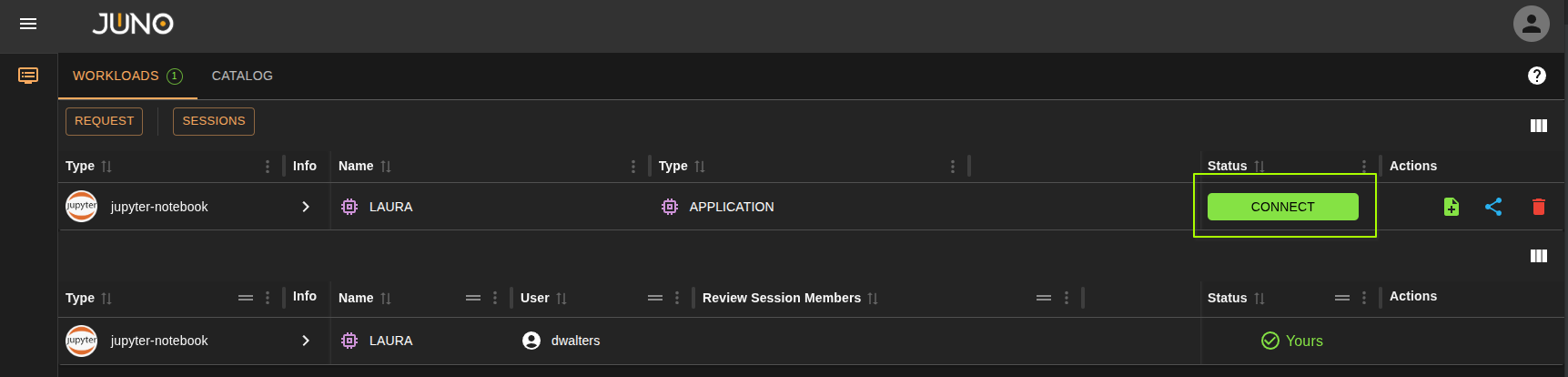
Connect
Once the workload is ready to be connected too. A green CONNECT button will appear in the status. Click this button to connect.
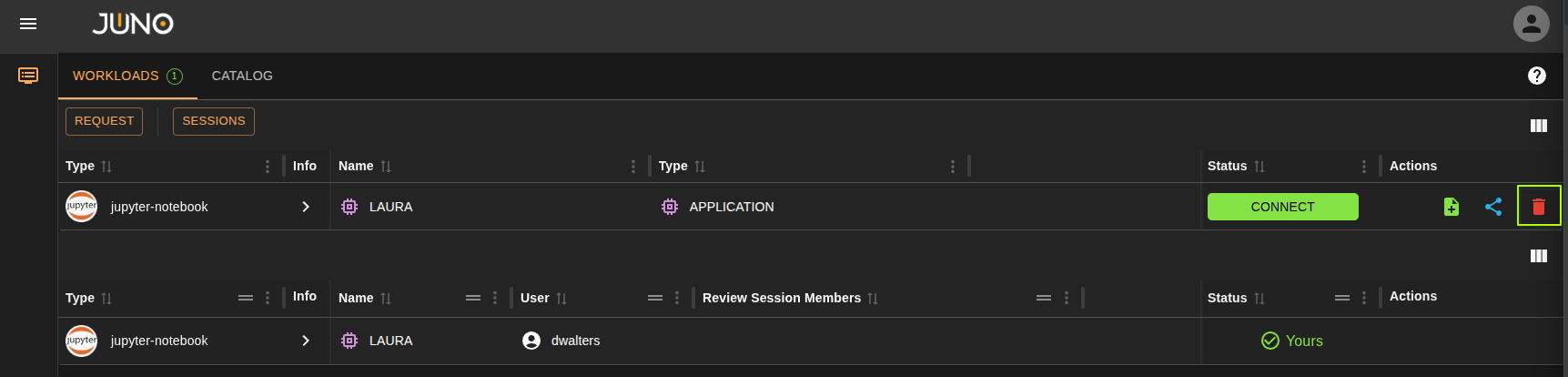
Delete
Click the delete icon in the actions column on the workload row to delete the workload.
Auto Shutdown & Hibernation
Workload templates can now be configured in Genesis with an idle shutdown timer. Read more about the template fields that control this behavior here.
Note
Workloads launched from templates created before this release are deprecated and do not have the automatic idle shutdown timer, since they lack values for the new template fields. You can still manually hibernate these workloads at any time, see Manual Hibernate/Activate below. Launch the workload from a newly created template if you want the automatic timer.
Idle Timer & Notifications
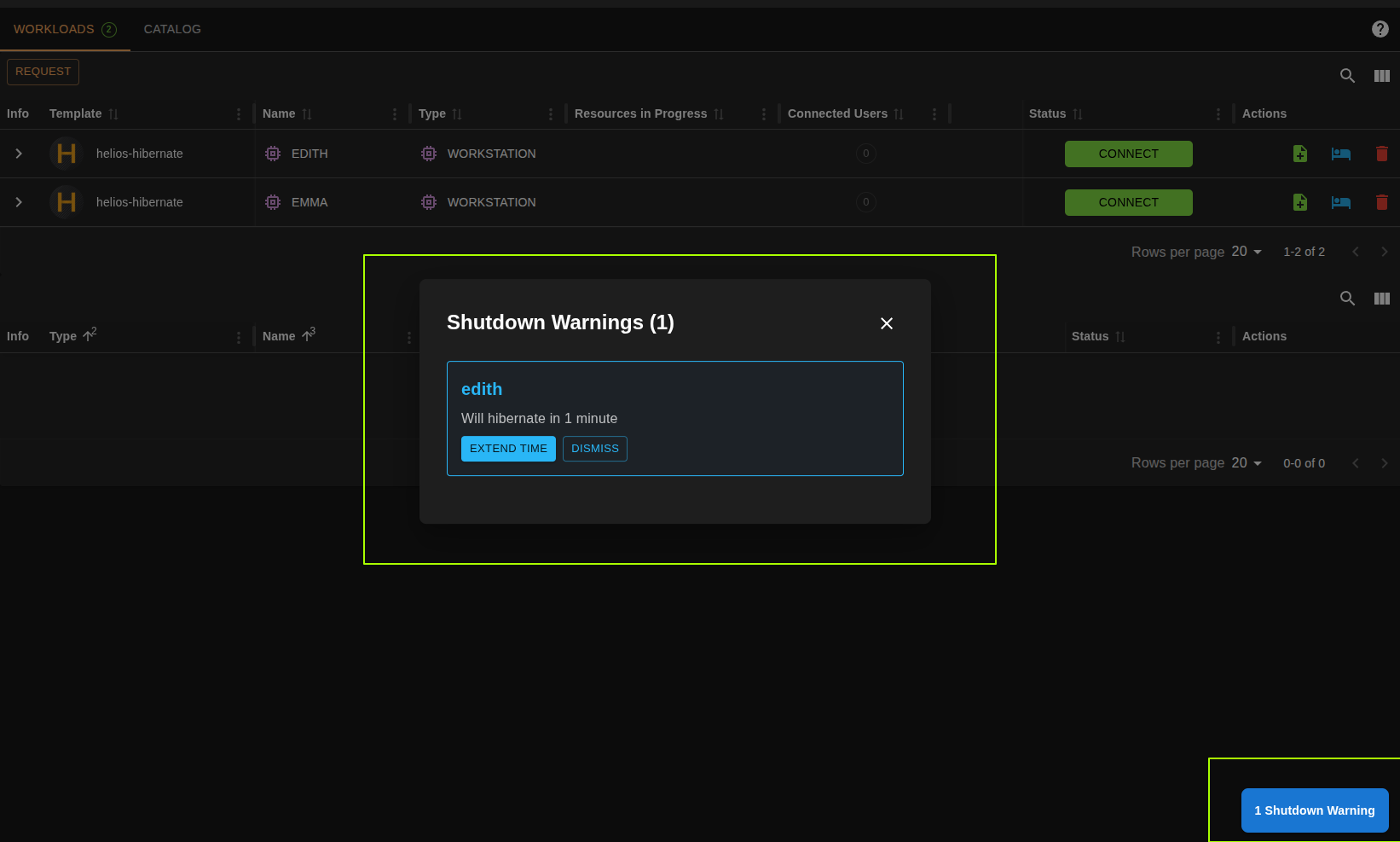
If a workload with auto shutdown enabled has no active connections, its shutdown timer begins counting down. When there are 5 minutes or less remaining before the workload shuts down or hibernates, the workload owner receives a notification in Hubble. From this notification you can:
- Dismiss - Acknowledge the notification and let the workload shut down/hibernate once the final 5 minutes elapse.
- Extend - Reset the timer back to the full
shutdownTimeoutvalue configured on the workload's template.
Manual Hibernate/Activate
You don't need to wait for the idle timer, workloads can be hibernated on demand directly from the Hubble workloads table via the new Actions button on the workload row. Once hibernated, the same button lets you activate the workload again, scaling it back up.

You can also hibernate or activate individual resources within a workload from the resources table. See the resource actions documentation for details.
Not every workload can be hibernated
Only StatefulSet and Deployment resources support hibernation. If a workload doesn't contain either of these
resource kinds, the hibernate action will not be available for it.
Create template from workload
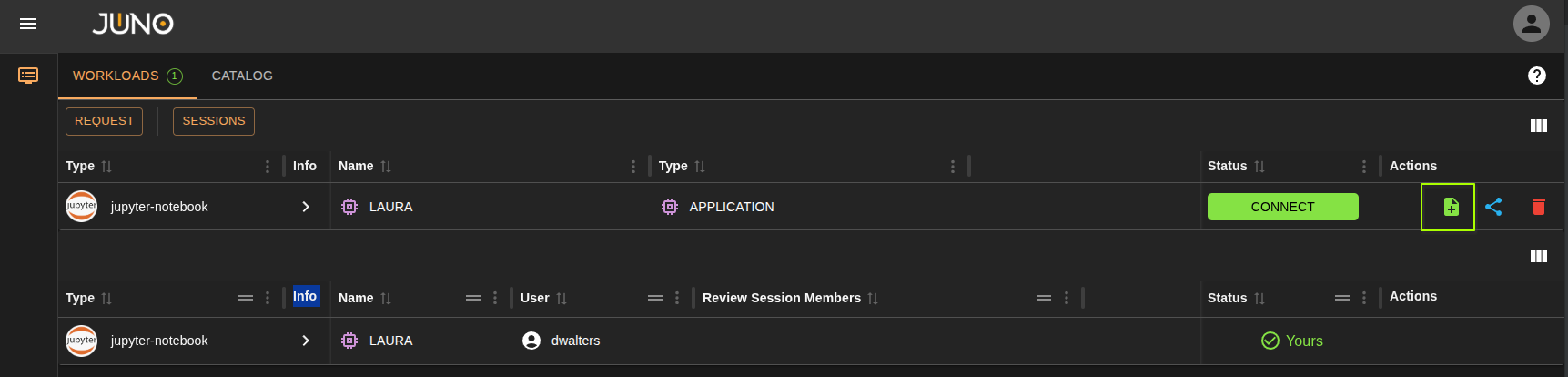
Click the green icon in the Actions column for a workload to create a template from that running workload. This is useful when you create a workload with custom environment variables at request time and want to save them for later; the created template will include those environment variables.
Review Sessions (Coming Soon)
This functionality is currently being revised. Coming soon...
Admin Control Workloads
Admins have the ability to control another users workload. This works great for debugging, and training purposes.
Note
Access to another user's workload actions, such as hibernate and shutdown, is restricted to admins. Kuiper users can no longer perform actions on other users' workloads.