Introduction
Genesis is the official dashboard for managing your entire Orion ecosystem. From here, users can create, manage, and connect to workspaces. It provides tools for user and group management across workspaces, services, and roles. Storage, network capabilities, and custom workloads can all be configured on a per-workspace basis. Additionally, apps can be installed via Terra, and the Orion license can be managed directly from the dashboard.
Workspaces, formerly Projects
Projects have been rebranded to Workspaces. Existing project API endpoints and Titan "Project" groups continue to work unchanged. See the Workspaces documentation for details.
Navigation
Main links/Installed Cluster Apps
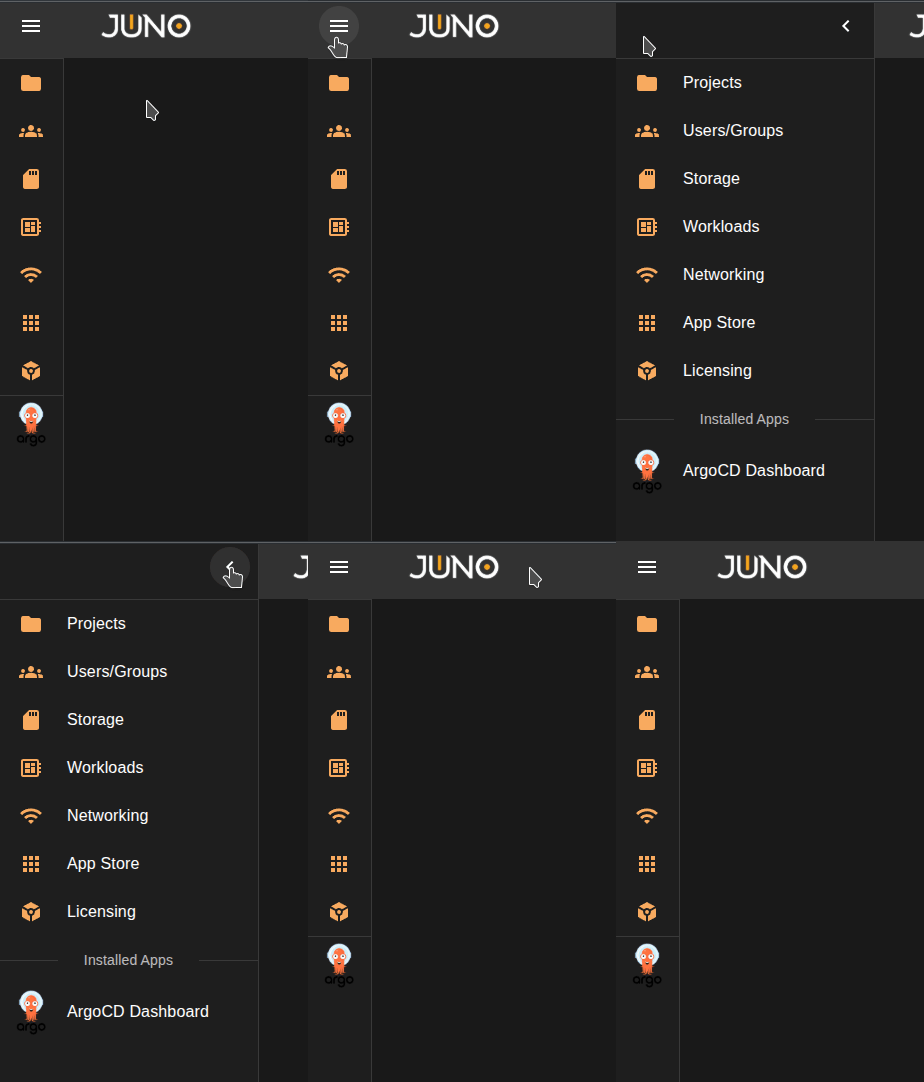
On the left side of the screen, users will find a sidebar. To expand it, click the icon in the top-left corner of the page. To collapse the sidebar, click the arrow at the top. Here you will find the main links, Cluster Installed apps (If you have any), and help links which are located at the bottom of the side bar
Help Links
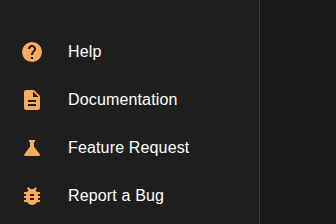
These links are located at the bottom of the side bar.
| Link Name | Definition |
|---|---|
| Help | Starts a help stepper that will guide you on how to use the main functionalities of the genesis UI. |
| Documentation | Links you to our Official Orion Documentation. |
| Feature Request | Links you to our Github report repo where you can open a ticket for a new feature. |
| Report a Bug | Links you to our GitHub report repo where you can open a ticket for an issue you encounter. |
User Menu
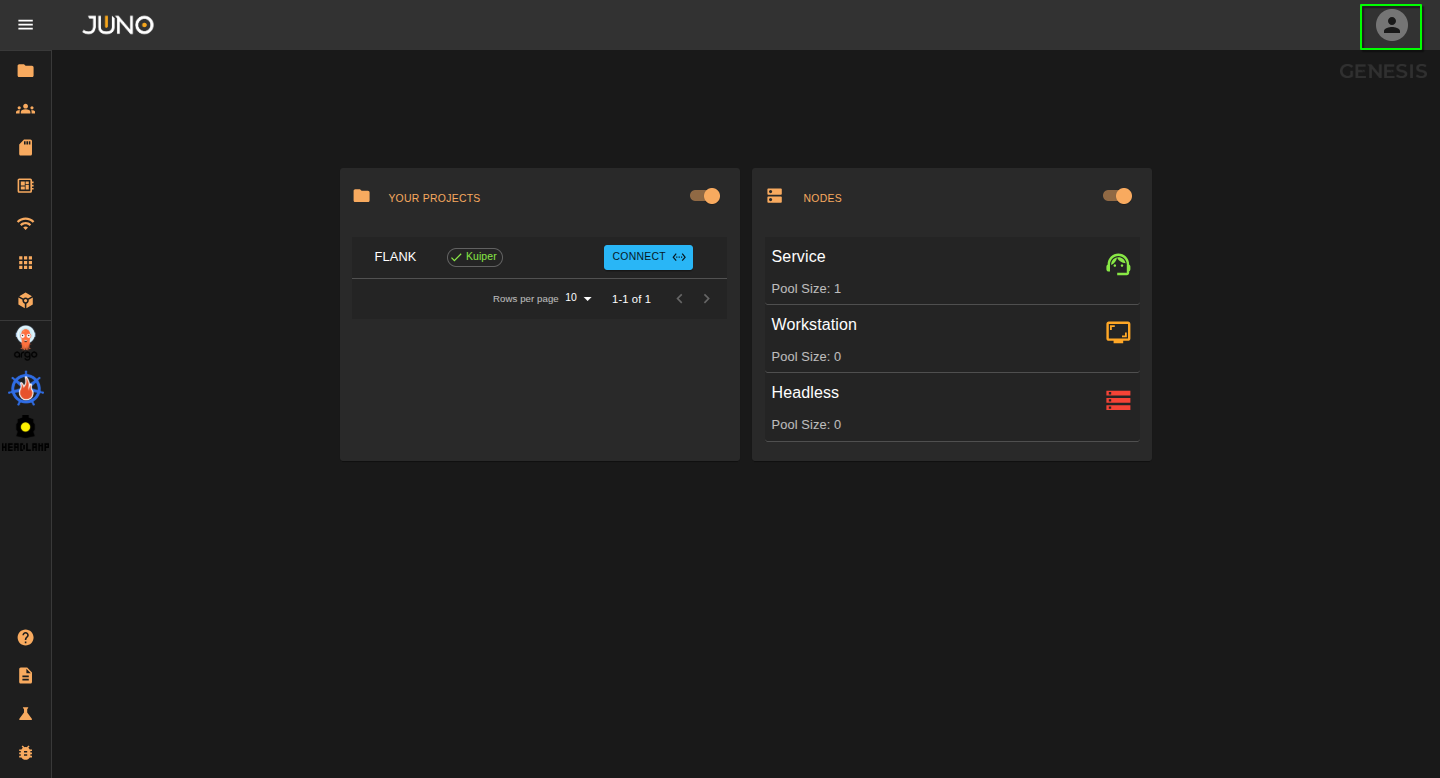
Click the user icon located in the top right of genesis to open the user menu. Here you can access the settings page, create an api token, development page and log out.
Settings page
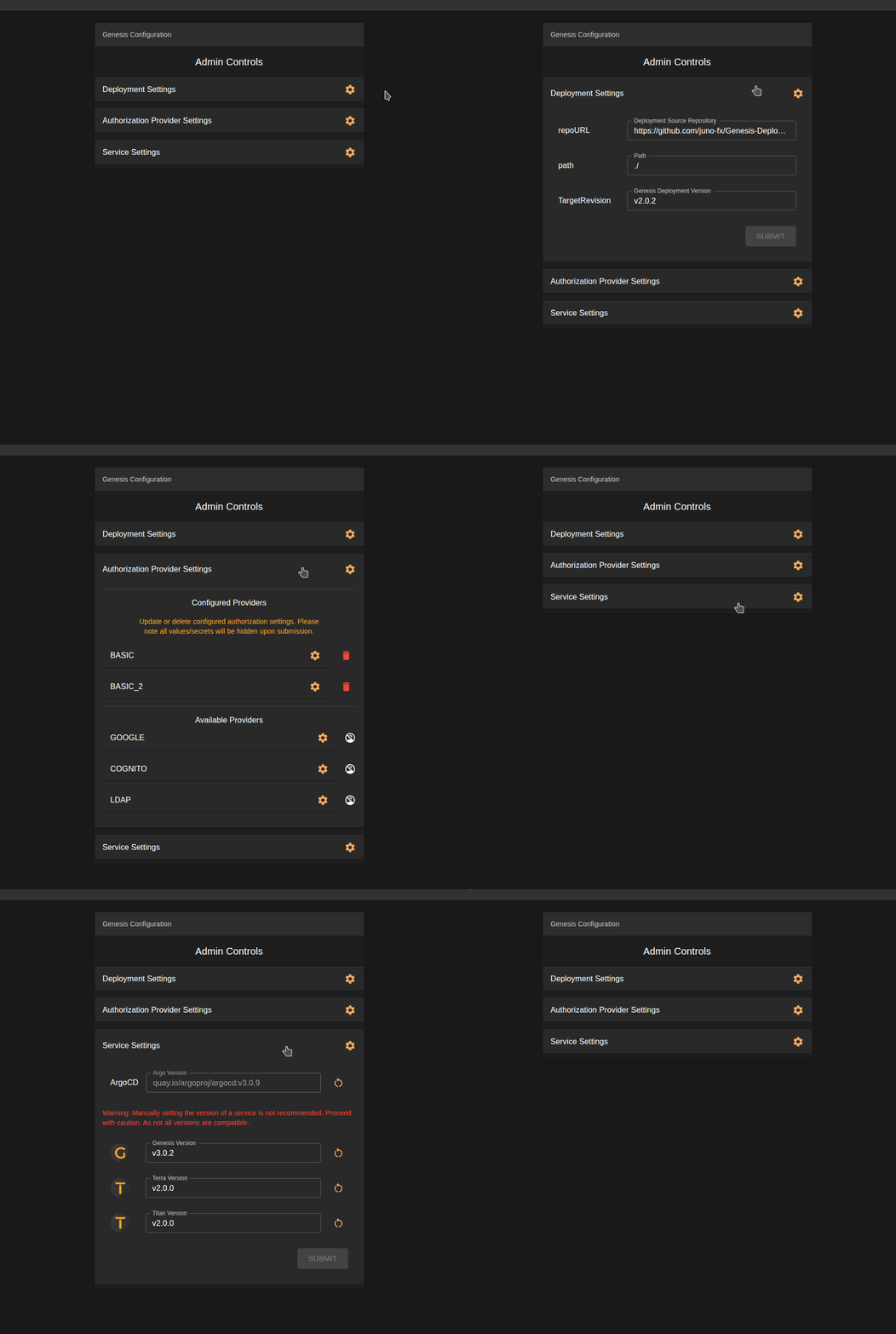
Here you can update your deployment targetRevision, authorization providers, and service images. You can also restart services.
LDAP Connection Test
When adding LDAP authentication for the first time, a "Test Connection" button is available next to the LDAP settings. Click it to validate your LDAP server details before submitting the form.
Initial configuration only
The connection test button is only available while configuring LDAP for the first time. It is not available when editing existing LDAP settings, since testing an edit would require passing your full LDAP settings, including credentials, back to the frontend, which we consider a security risk.
Create API Token
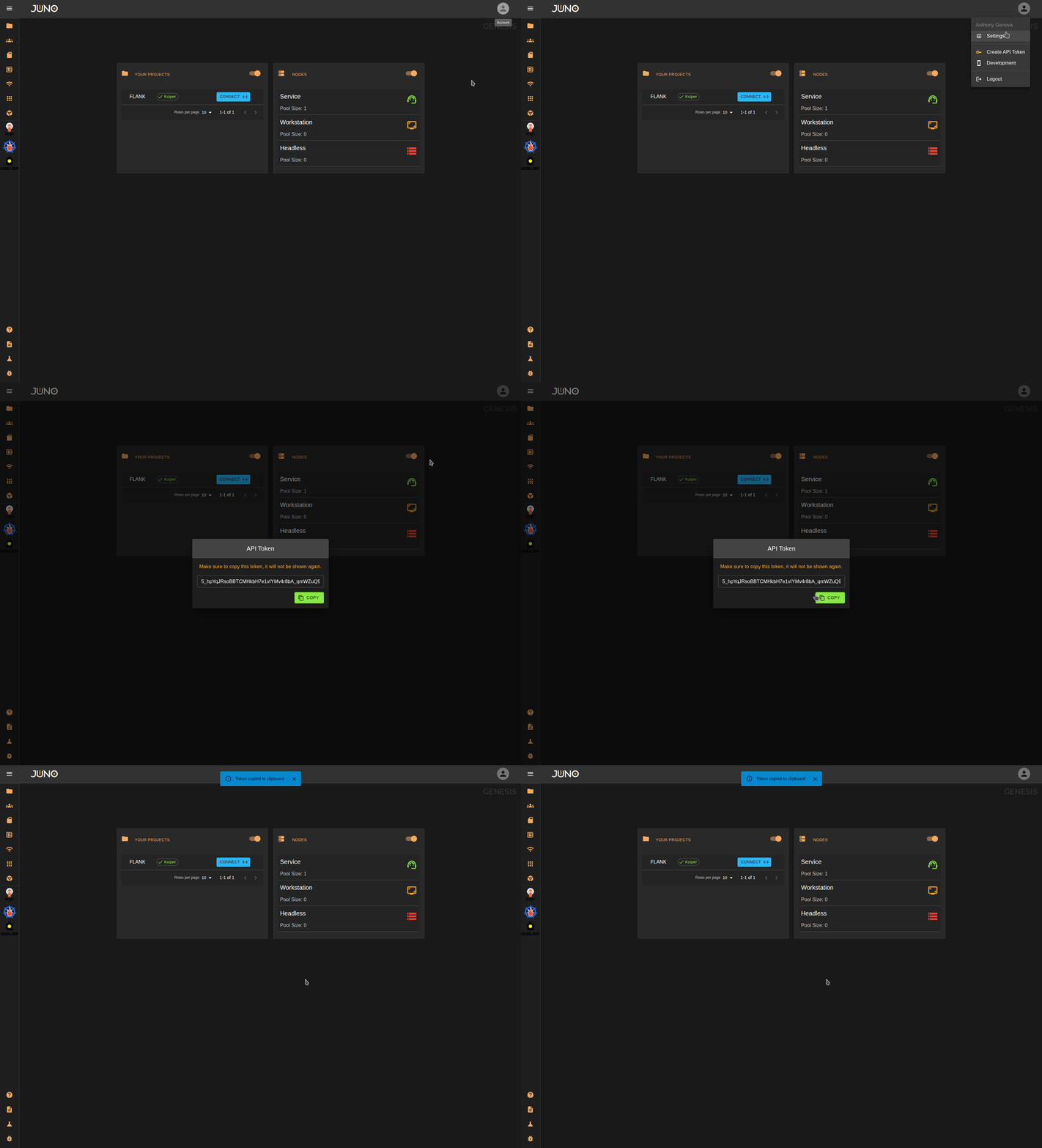
If you want to hit our service API's you will need to generate an API token. Open the user menu and click Create API Token.
Development
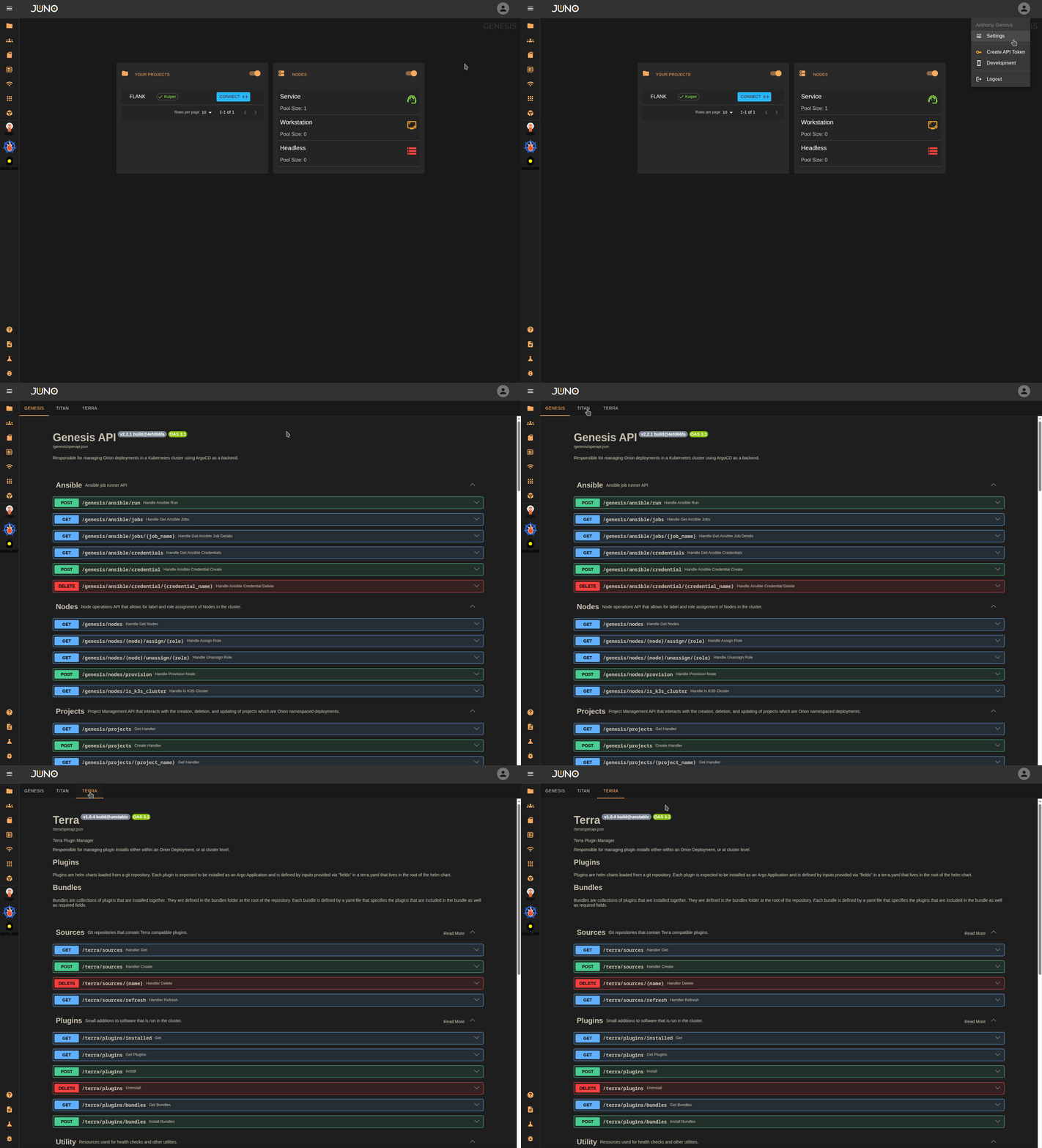
We use FastAPI under the hood for our services. You can navigate to our development page to directly use the FastAPI Swagger UI to hit our services. Each service is available specifically to admin users or users assigned to the respective group. This can be used for testing or development purposes.
Dashboard widgets
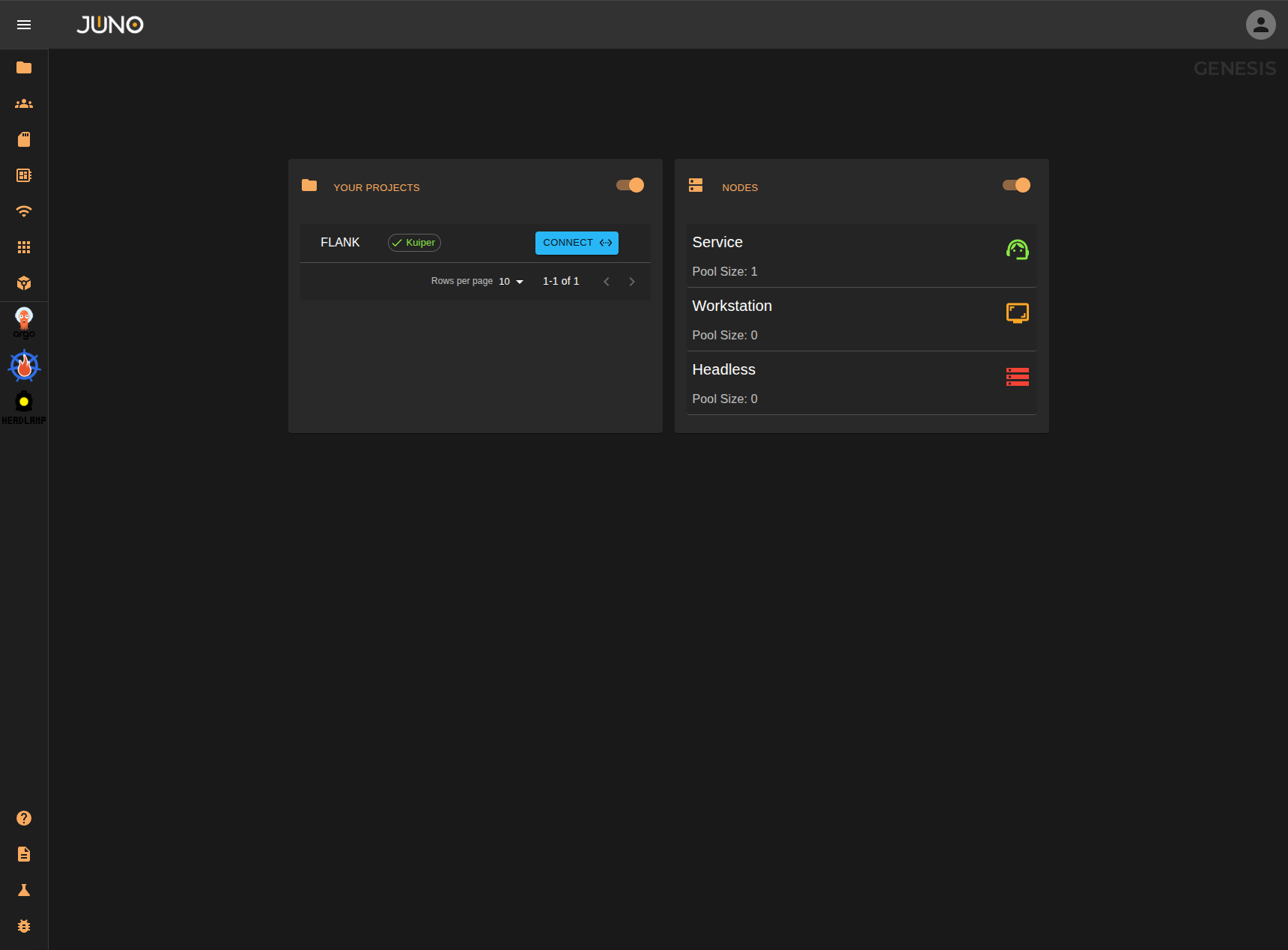
The homepage of genesis will have two widgets displayed. These are used for quick access/viewing.
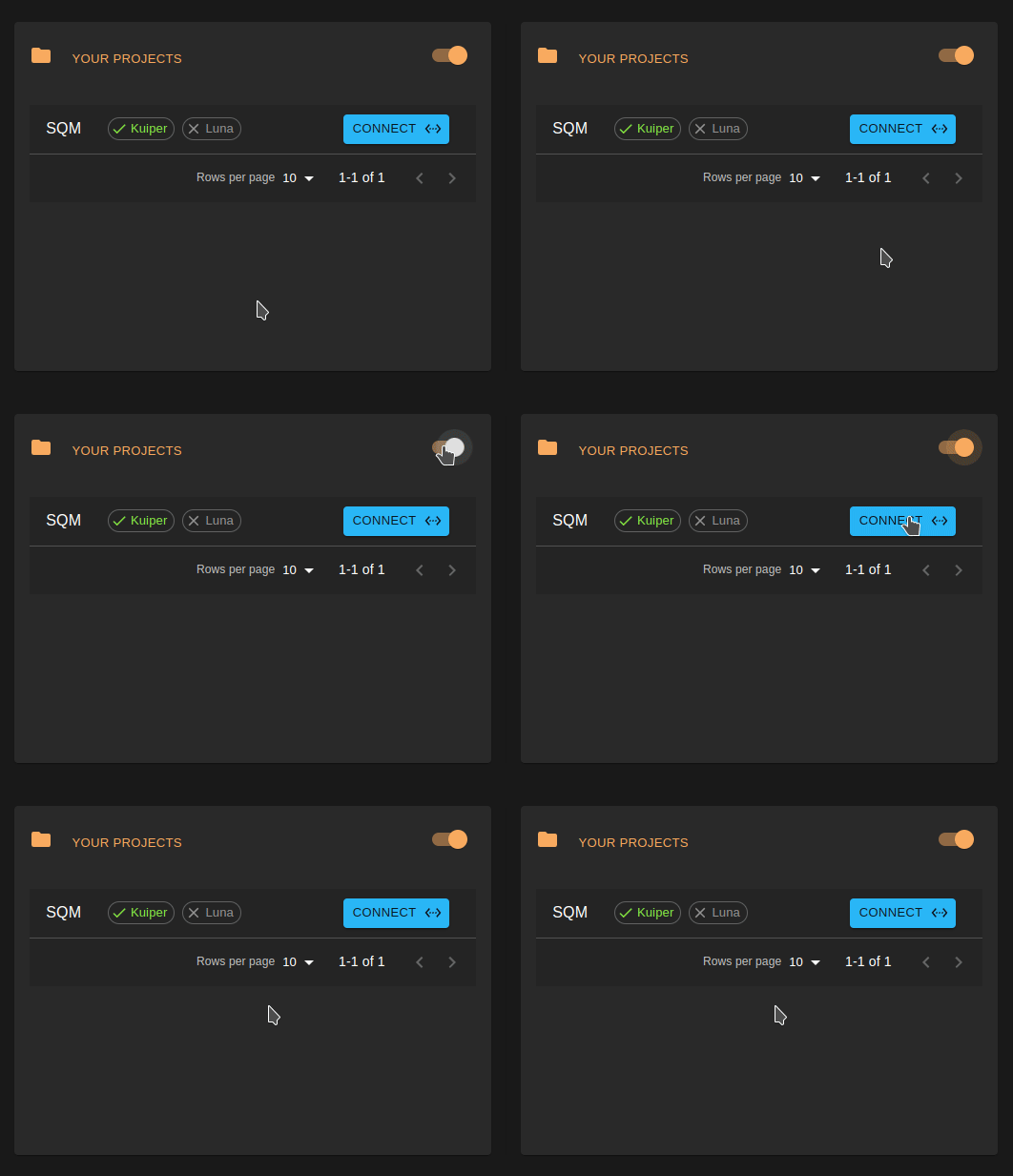
Your Workspaces
This widget displays your active workspaces. For a workspace to appear in this widget, your user must be assigned to the workspace group, and the workspace must be active. Learn more about user group assignment here.
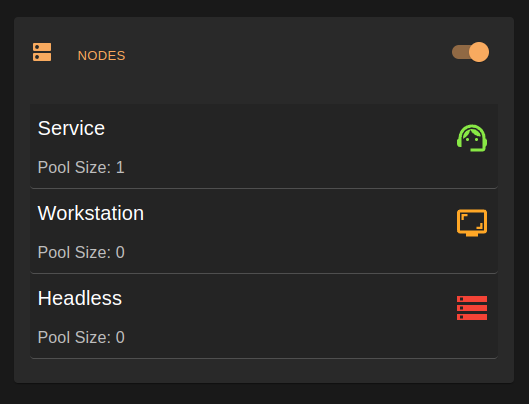
Nodes
This widget displays the following types of nodes
| Node type | Description |
|---|---|
| Service nodes | Represent workspaces. |
| Workstation nodes | Show all active running workloads. |
| Headless nodes | Represent workloads running without a user interface (e.g. render node). |
Learn more about the nodes and network page here.