Backup & Disaster Recovery
As part of a production installation, you should make sure to set up regular backups.
This guide will walk you through all the state that Orion stores and relies on. We will suggest a prebuilt plugin we provide to back it up - however if you already have a Kubernetes backup strategy, you can of course instead plug in your existing tooling.
Note that this only walks you through backing up data related to Orion and its core functionality.
It does not cover backing up data you attach to workloads running within the platform. For example, when you mount in a PVC attached to your existing NFS storage, you must ensure it is backed up separately.
What Needs To Be Backed Up
Important
When performing a restore, make sure to do it in the order outlined below, from 1 to 10
The below lists all Kubernetes resources we recommend backing up. We do not currently rely on any state stored outside the Kubernetes API. This list is all you need to get your Orion installation back up & running in a Disaster Recovery scenario:
- The TLS secret you use for your ingress.
- The
juno-auth-secretSecret in theargocdnamespace. - The
applications.argoproj.iogenesisresource. - All
users.juno-innovations.comresources. - All
groups.juno-innovations.comresources. - All Secrets in the
argocdnamespace suffixed with-token. - All
applications.argoproj.ioresources annotated withterra.juno-innovations.com/plugin_project. - All ConfigMaps in the
argocdnamespace labeled withkuiper.juno-innovations.com/template=. - All
applications.argoproj.ioresources labeled withjuno-innovations.com/provider. - All resources in the per-environment namespace. This will contain your storage configuration.
Preconfigured Velero plugin
Within our Terra App Store, you can find a preconfigured set of Velero plugins. Setting them both up will take care of all necessary backups for the Orion platform.
It can upload to any S3-compatible storage, such as MinIO, Wasabi, etc.
We recommend AWS S3, however anything compatible with the protocol will be up to the task.
To install Velero, simply go to the app store and install "Velero". That deploys the operator and points it to your storage backend. It does not yet schedule backups.
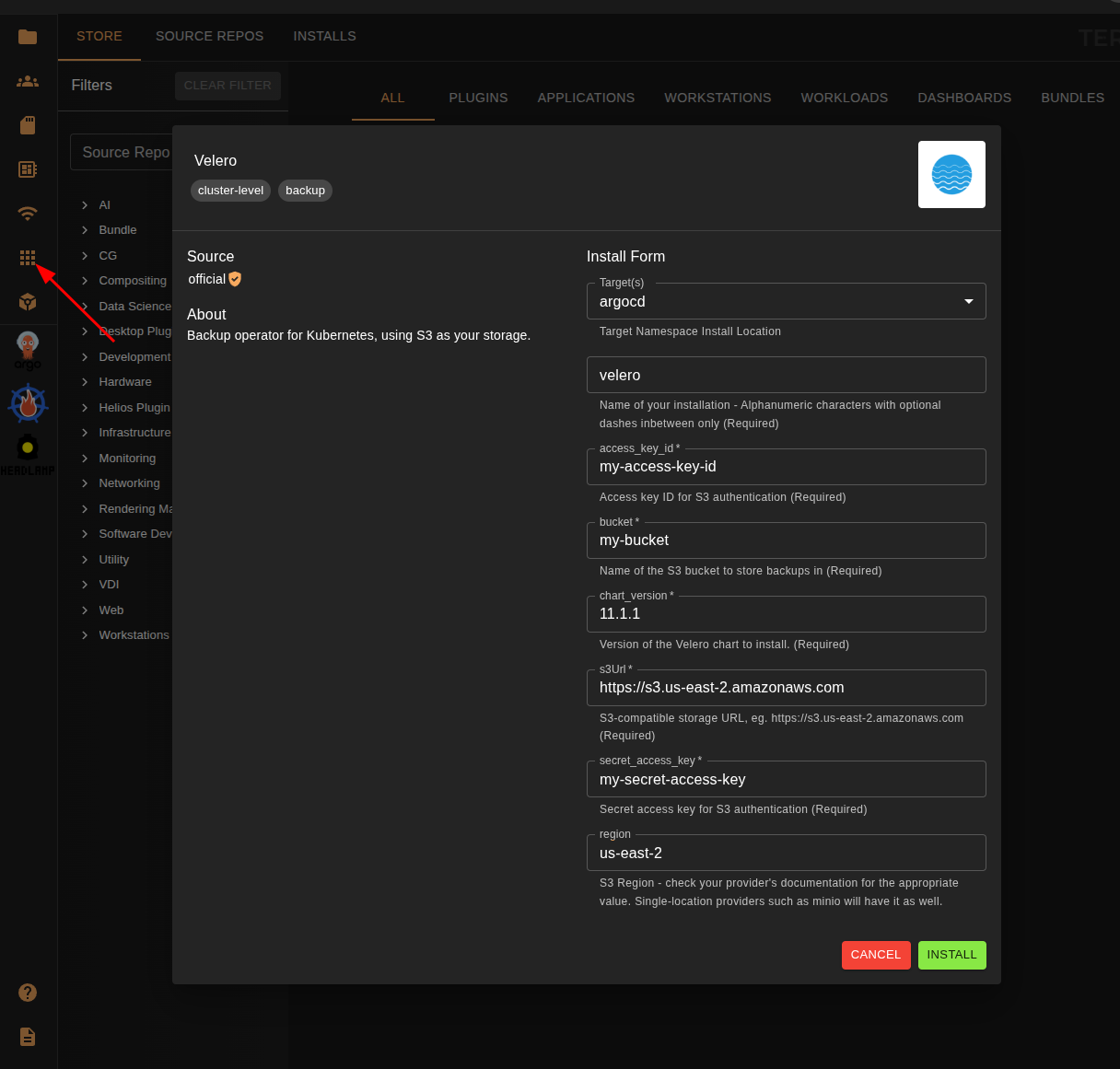
Having installed it, you can then install the "Velero Cluster Backup" plugin. This will back up all resources in your Kubernetes cluster to S3. Keep in mind this will also back up non-Orion Kubernetes resources.
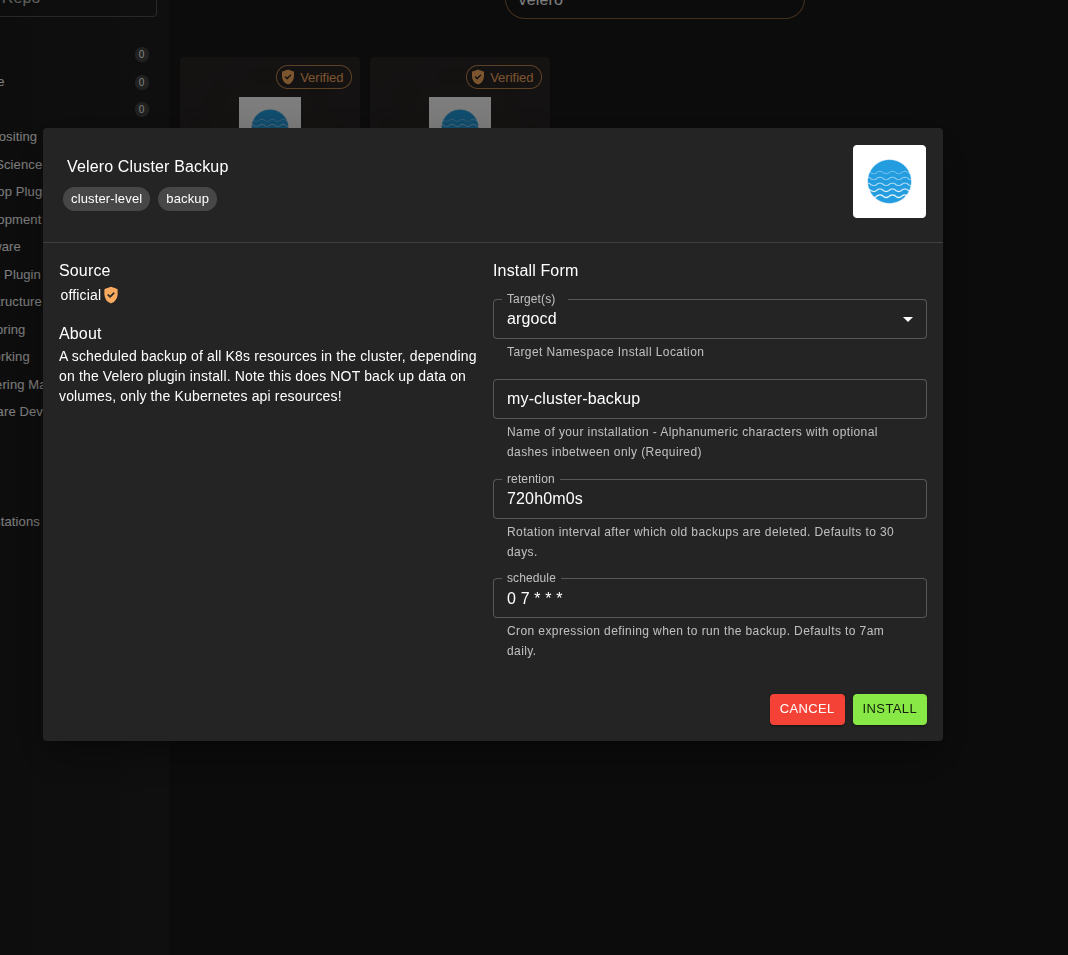
It will not back up volumes/PVCs - you can expect the backup size to be very conservative thanks to that. While you can reuse Velero for PVC backups, this is currently outside the scope of the plugin - if you'd like to do that, we currently recommend setting up Velero with a custom configuration.
Performing a restore
Depending on whether you are performing a full Disaster Recovery scenario, migrating some data or recovering a single resource, you might want to filter for resources listed in What Needs To Be Backed Up section.
Once you know the scope of resources you are restoring, you can target them through the Velero CLI. Refer to the upstream documentation here for exact steps on the restore procedure.