Instance Management
Note
Instance management is restricted to members of 'admin' and 'kuiper' user groups
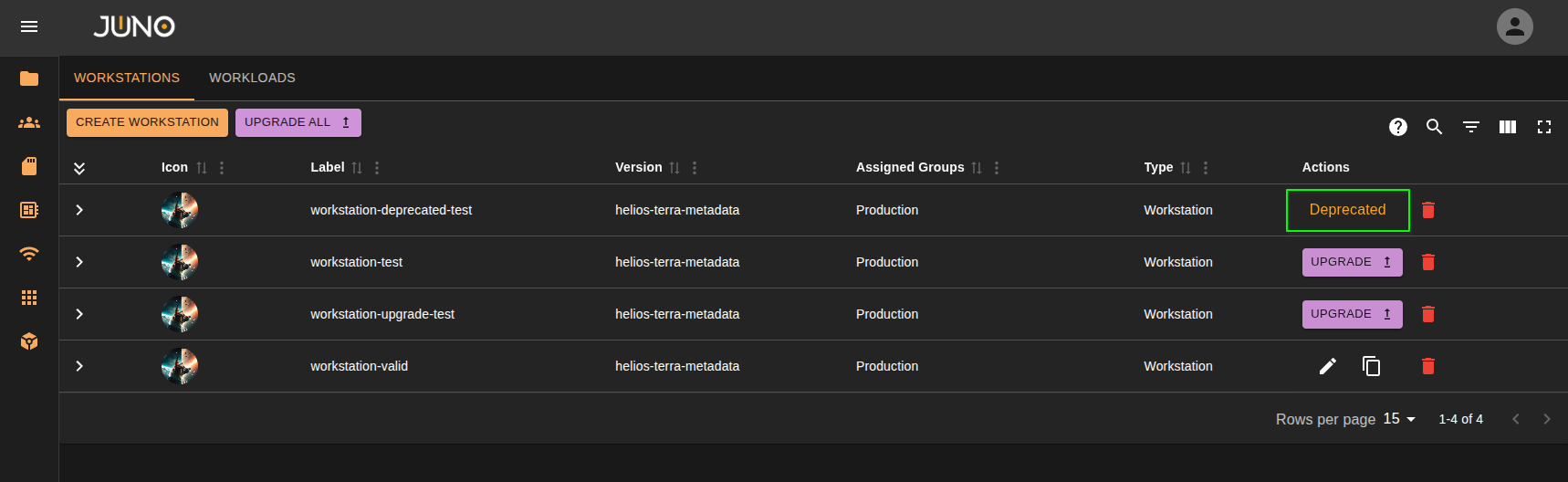
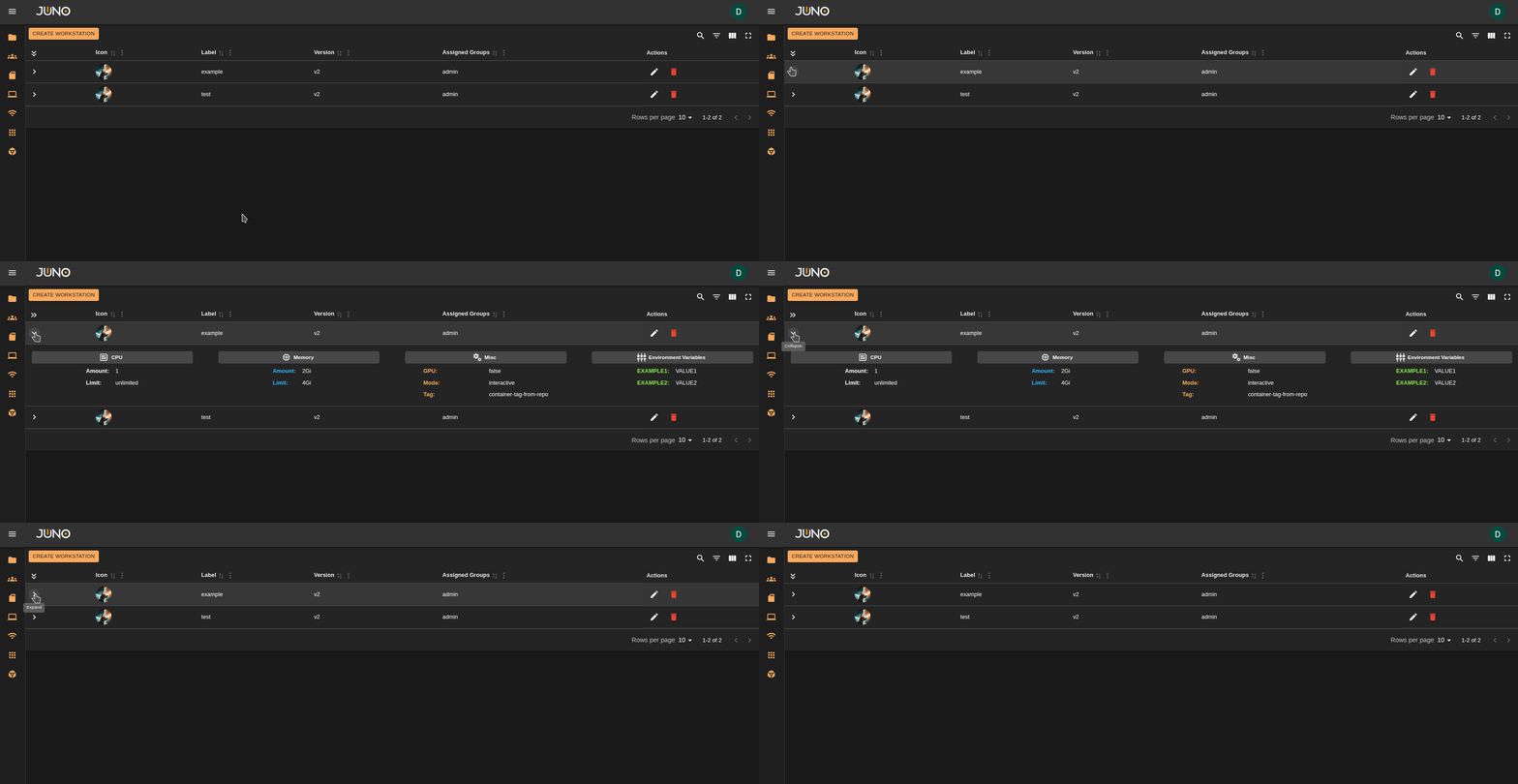
The instance management page allows users to create, edit, and delete workstation and workload templates, including assigning templates to specific groups and projects. Each template row in the table can be expanded to show additional details for the instance.
Pre-requisites
Before continuing, ensure you have installed a workstation template schema from Terra. You can find the instructions for this in the Terra Plugin Installation documentation.
Template Creation
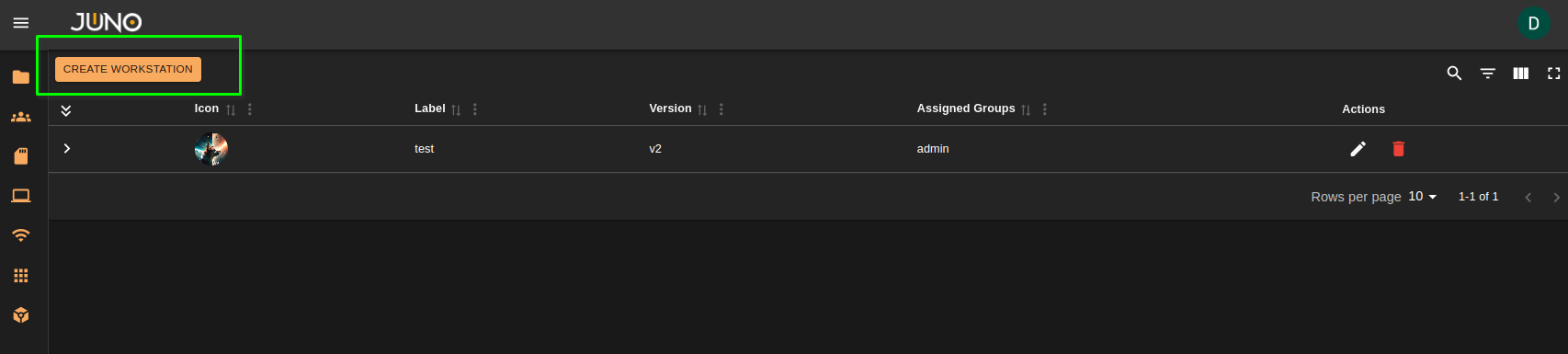
Use the Create button at the top left of the table to open the template creation wizard. To create a workstation, go to the Workstations tab and click Create Workstation. To create a workload, go to the Workloads tab and click Create Workload.
Schema Version
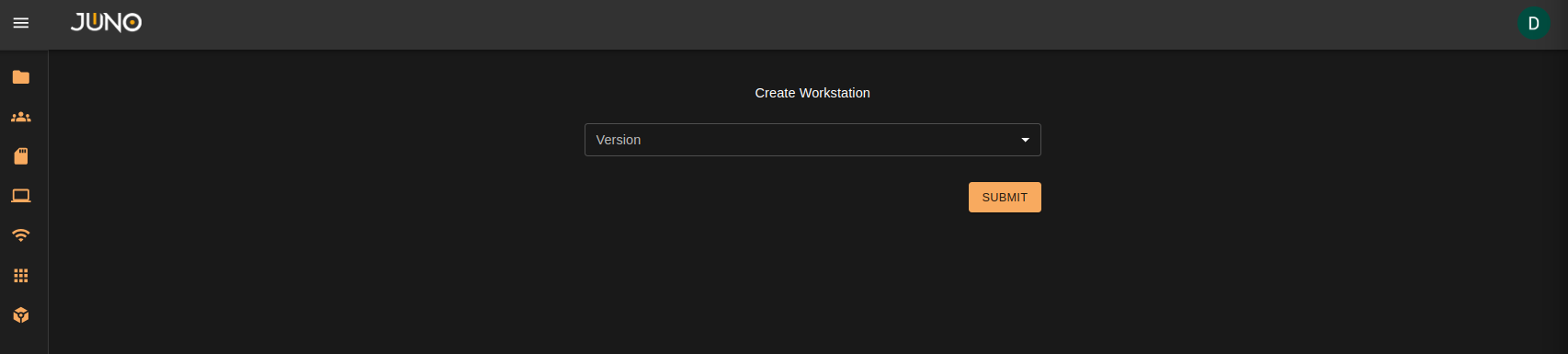
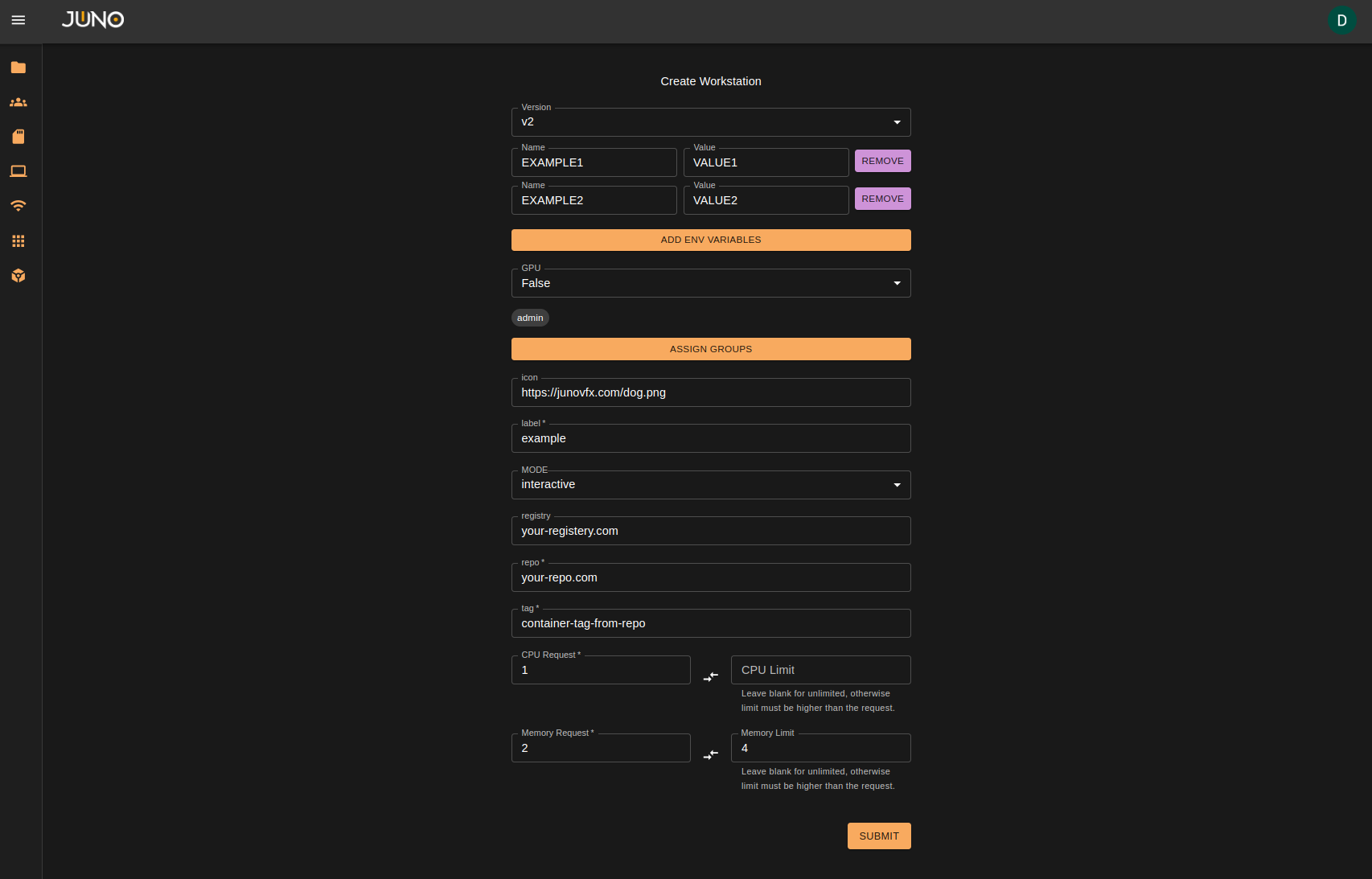
The first drop down will list the available schema template versions. These will be filtered based on the instance type (workstation/workload) you are creating the template for. Once selected, the template schema fields will appear for you to fill out.
Schema Fields
The schema fields available may differ between the schema version selected. The UI will prompt you for all required fields for the schema. Once the fields are filled out simply click submit at the bottom right, and the workstation template will now be created.
Schema Field Types
When authoring a workstation/workload template via Terra the author of the plugin can define additional fields within the configMaps data. These are then populated into the Genesis front end UI.
Please note
Not all Genesis release versions have full field support. Field type and support is continuously added in newer release versions as we find the need for additional field handling.
Field Properties
| Field Name | Description |
|---|---|
| name | name of the field |
| description | description of the field used for the tooltip |
| type | The type of field, which will determine how the front end handles the field. See below for our different types. |
| default | a default hardcoded value that will be auto filled upon opening the template creation form. This is None by default |
| required | True/False boolean defining whether or not the field is required for template creation. This is False by default |
| options | A list of options for our Multi and Select field types |
Field Types
| Field Type | Description |
|---|---|
| string | string text field input. |
| int | integer text field input |
| env | Environment Variable field. This is a default field that is automatically set for all schemas |
| boolean | True/False boolean type field |
| multi | A multi-selection field. Using multi will require the field to include the options property for the user to have a list of options to select. |
| select | A single selection field. Using select will require the field to include the options property for the user to have a list of options to select. |
| k8sPriority | A selection field for Kubernetes PriorityClasses. If set, we will automatically query all available priority class names from the cluster, and populate the available options |
| k8sServiceAccount | A selection field for Kubernetes ServiceAccounts. If set, we will automatically query all available ServiceAccounts from the cluster, and populate the available options in a namespace mapped dictionary |
Template Env Variables
Add Environment Variables to a template, which can be used and accessed directly from within a workstation/workload.
Template Group/Project Assignment
During template creation you must assign the template to at least one group. Assigned templates are available only to the selected group(s); you can scope them to a project or to a specific user group. Learn more about user management here
Template Actions
Edit
From the main table, users can choose to edit a workstation template by clicking the pencil icon on the template's row. Doing so will pull up the same creation form, pre-filled in with the current template values. Users can edit any field as needed. The schema version will default to the current template's version, and is not editable. If a new version is needed, users can create a new workstation via the CREATE WORKSTATION button.

Delete
Users can also choose to delete a workstation template by clicking the red trash can icon on the template's row. The user will be prompted with a confirmation before proceeding.

Duplicate
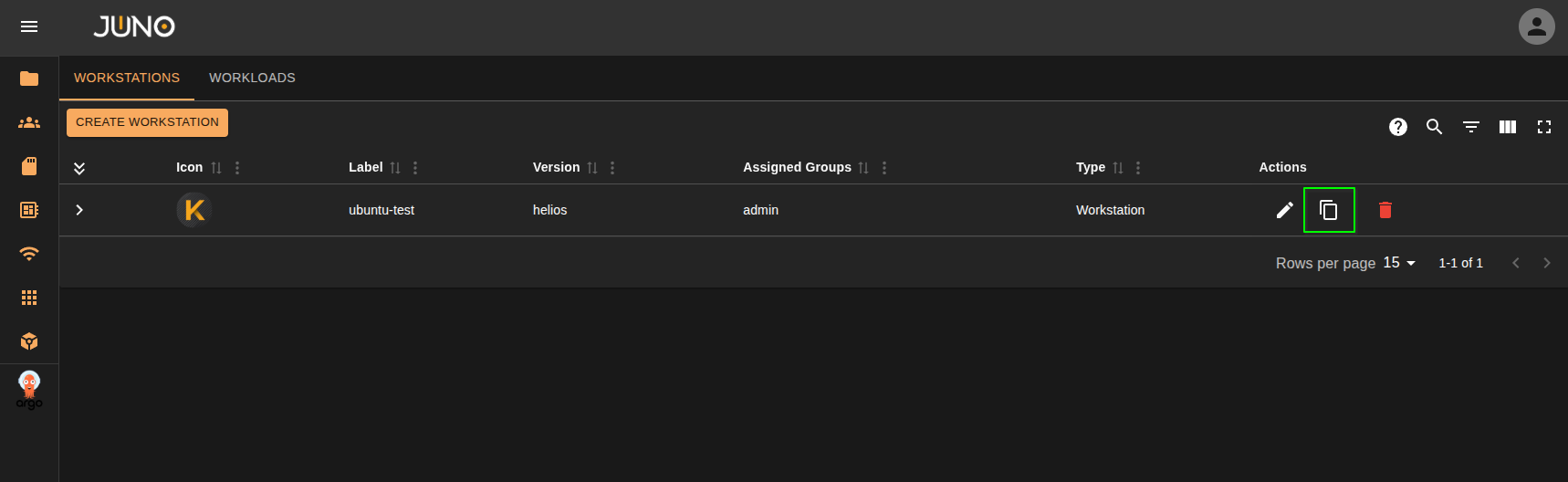
Users can duplicated a template by selecting the duplicate icon on each row.
Upgrade
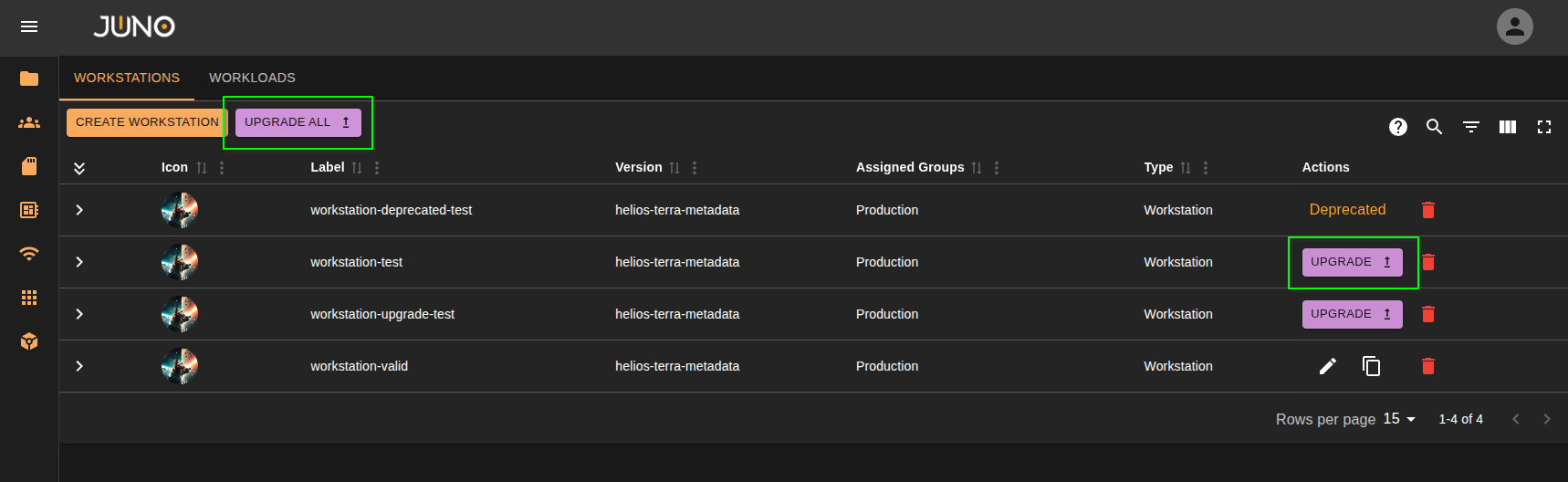
When a chart for a template changes, you will be able to upgrade the template so it matches what changes the chart has. You can upgrade all templates in the table or upgrade a single template by selecting the upgrade button on the row.
Deprecated
A template becomes deprecated when the template matching schema is no longer found or if the template associated schema has changed, and it now has required fields the original template never had. You may continue using the template but you will no longer be able to edit the template.