Project Management
What is a project?
A project is an isolated environment for Hubble and Kuiper with its own network policies; connecting to a project lets you launch workloads.
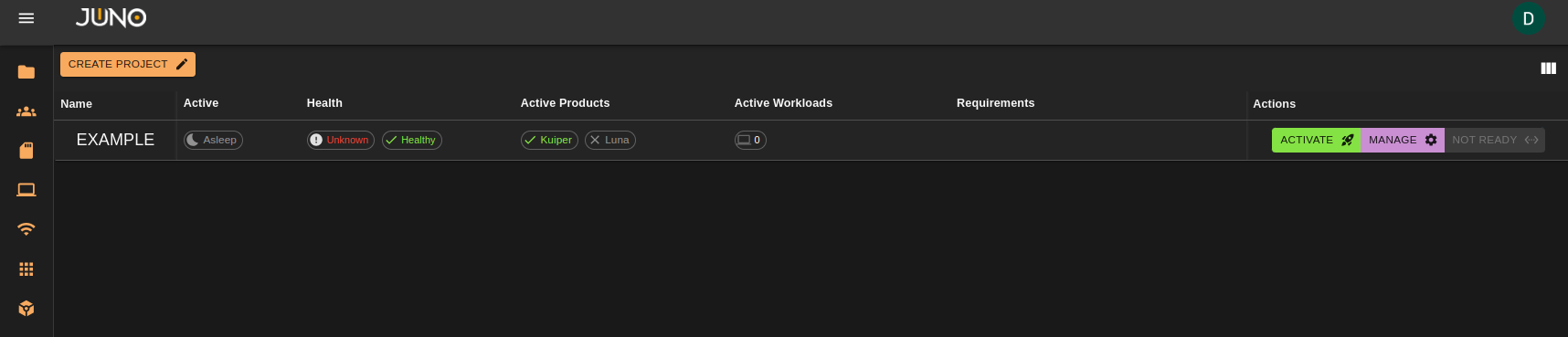
The project management page allows admins to create, configure, and activate projects. While also allowing users to connect to their assigned projects. See user group assignments on our User Management Page for more information. Users can also see which projects are active, the status of each project, which products are active on each project, the number of active workloads currently running on a project, and the description of the project.
Project Creation
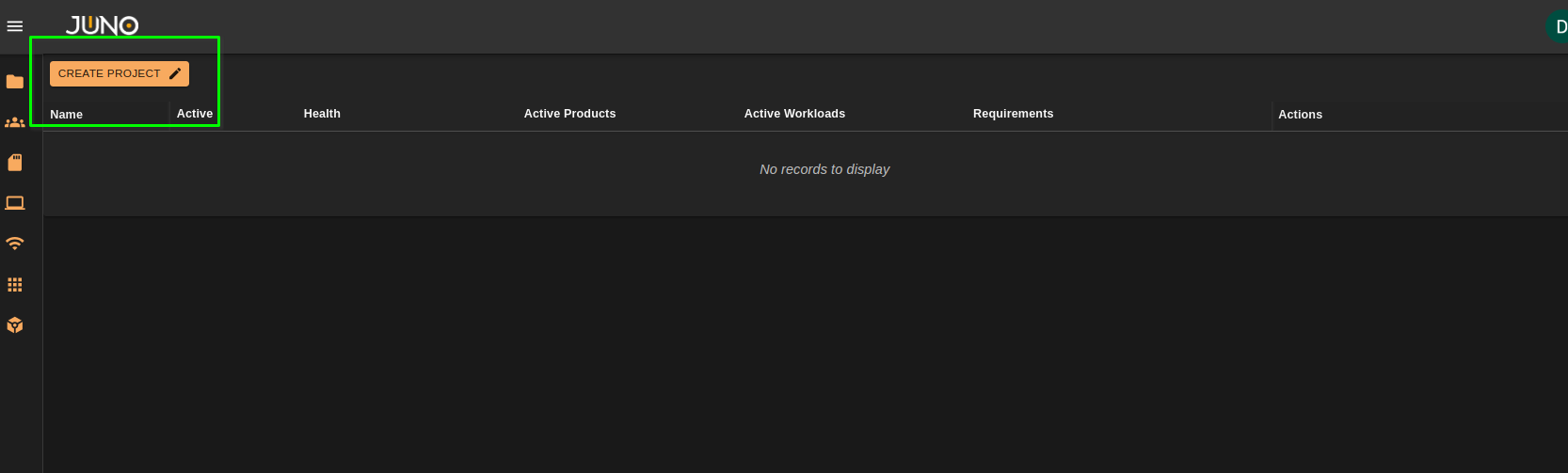
At the top left of the project table, there is a button labeled "CREATE PROJECT" clicking this button opens a project creation wizard.
Note
Admins are the only users that are able to create new projects. Learn more about user management here
Getting started
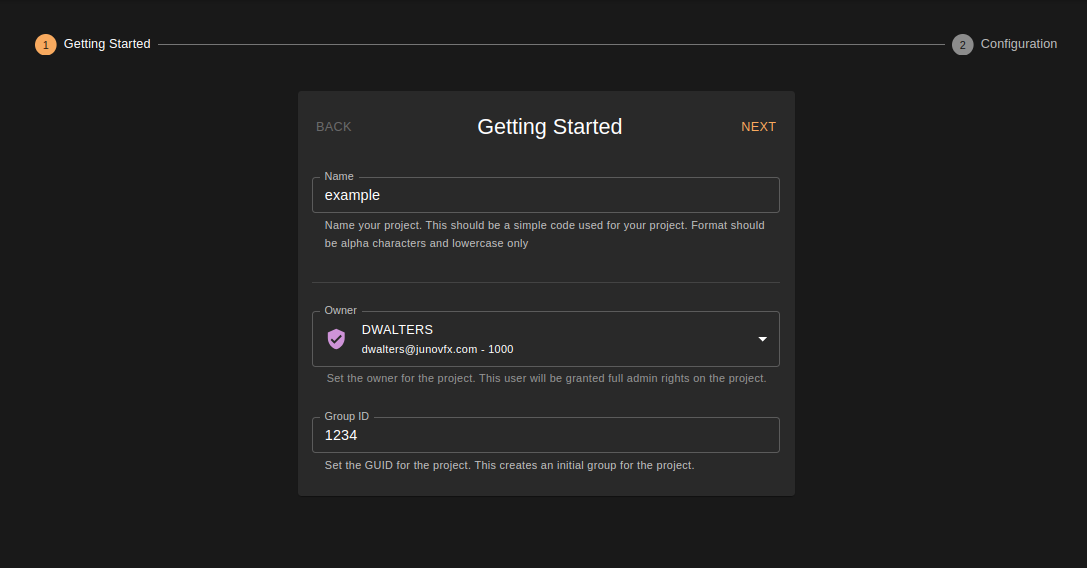
The first three fields in our getting started section must all be filled out before proceeding to the configuration section.
- Project names must be alpha and lowercase characters only.
- Only admin users can be selected as an owner of the project
- A GUID must be given. This will be used when creating the project group for user assignment.
- Once all fields are filled in click the NEXT button to continue to the configuration section.
Configuration
The configuration section, is where you can set your projects configuration. Once completed, simply click DEPLOY to finish the project creation wizard.
REQUIRED FIELDS
- The host url
- HTTP scheme
- Authentication Provider
- The repository for the orion deployment helm charts
- The Orion version to install
- The registry where the project will pull the images from
- Which products you wish to activate for the project.
OPTIONAL FIELDS
- Project Icon
- Project Description
- You can add additional customizations to the project. These will be additional helm charts to install alongside the main Orion deployment charts. Example: NVIDIA GPU Operator
- You also have access to advanced settings for the project. Where you can choose specific product versions to install. Doing this is not recommended as each Orion deployment has these versions pinned to ensure compatibility

Project Actions
Non-admin vs admin privileges
Admins are the only users that are able to activate/hibernate, manage and configure the projects. Non-admins are only able to connect to their assigned project. Learn more about user management here
Activate/Hibernate
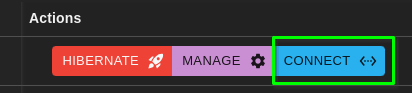
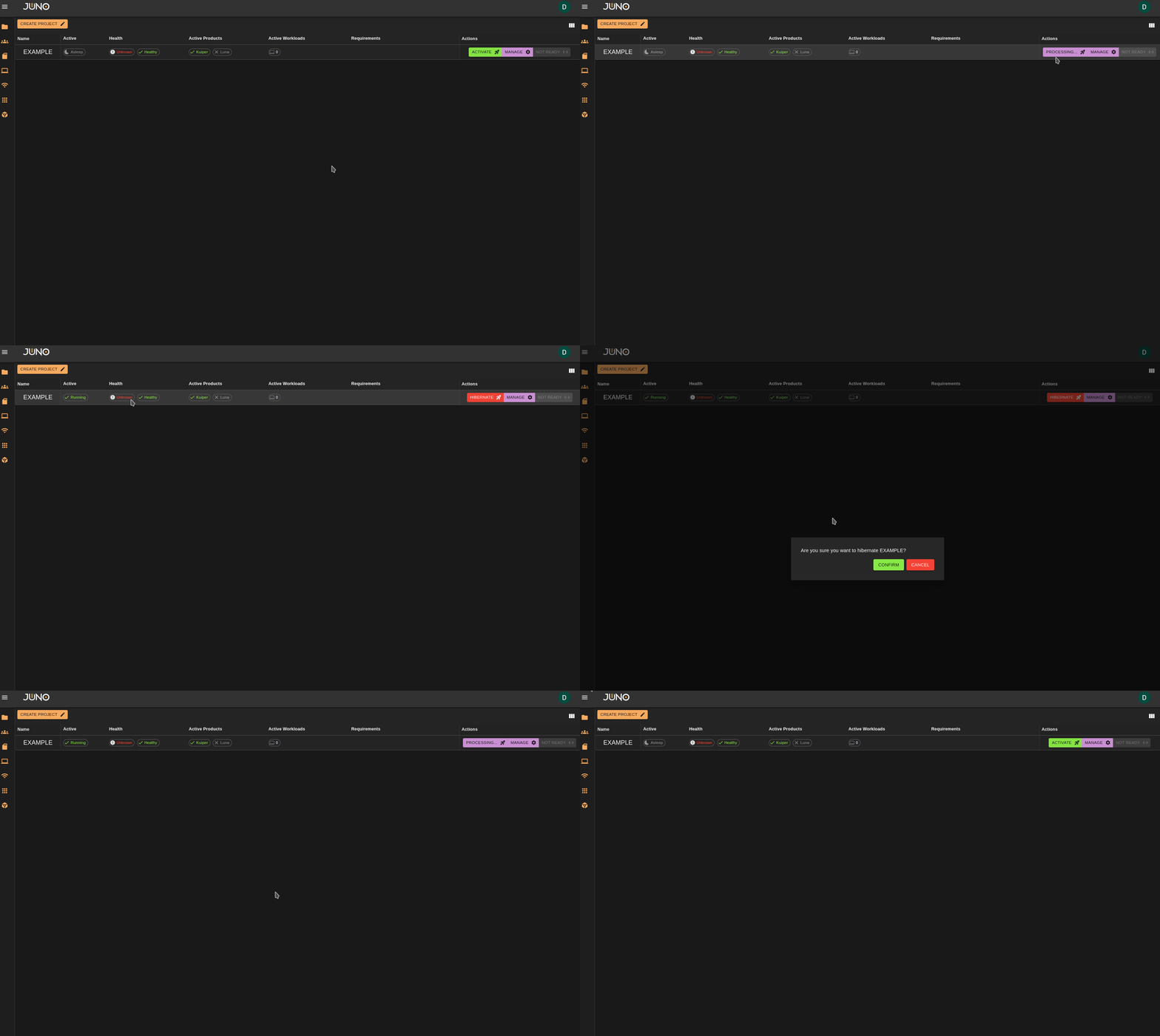
From the main project table, you will see your available actions for each project. Clicking Activate will begin scaling up the compute resources for the project. Once it's ready users can then connect to the project via the connect button. To hibernate a project and scale the compute resources back down, simply click the hibernate button. You will be prompted with a confirmation pop up before proceeding with the hibernation process. Please note all active workloads on a project must be shutdown prior to hibernating.
Manage
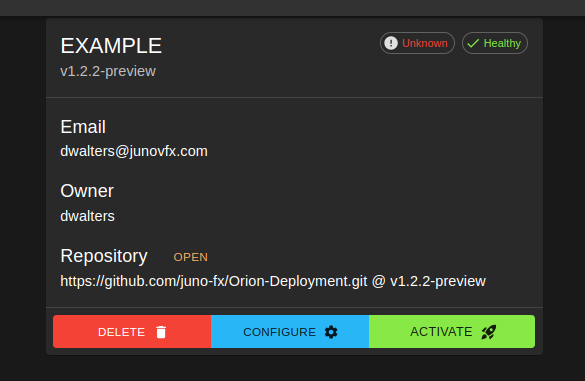
The manage button is only available to admins. Currently, only the owner of the project can manage the project. Owners, can delete the project, go back through the projects configuration to reconfigure the project, and activate/hibernate.
Connect
Once a project is active and ready, users that are assigned that project can click the connect button, to connect directly to that project deployment. Read more about hubble here